Build your first vision feature
Vision Lab is a runnable tutorial included in this repository. One Compose screen loads an image, recognizes its text using the platform's native engine, and draws the returned bounding boxes. It runs on Android and iOS.
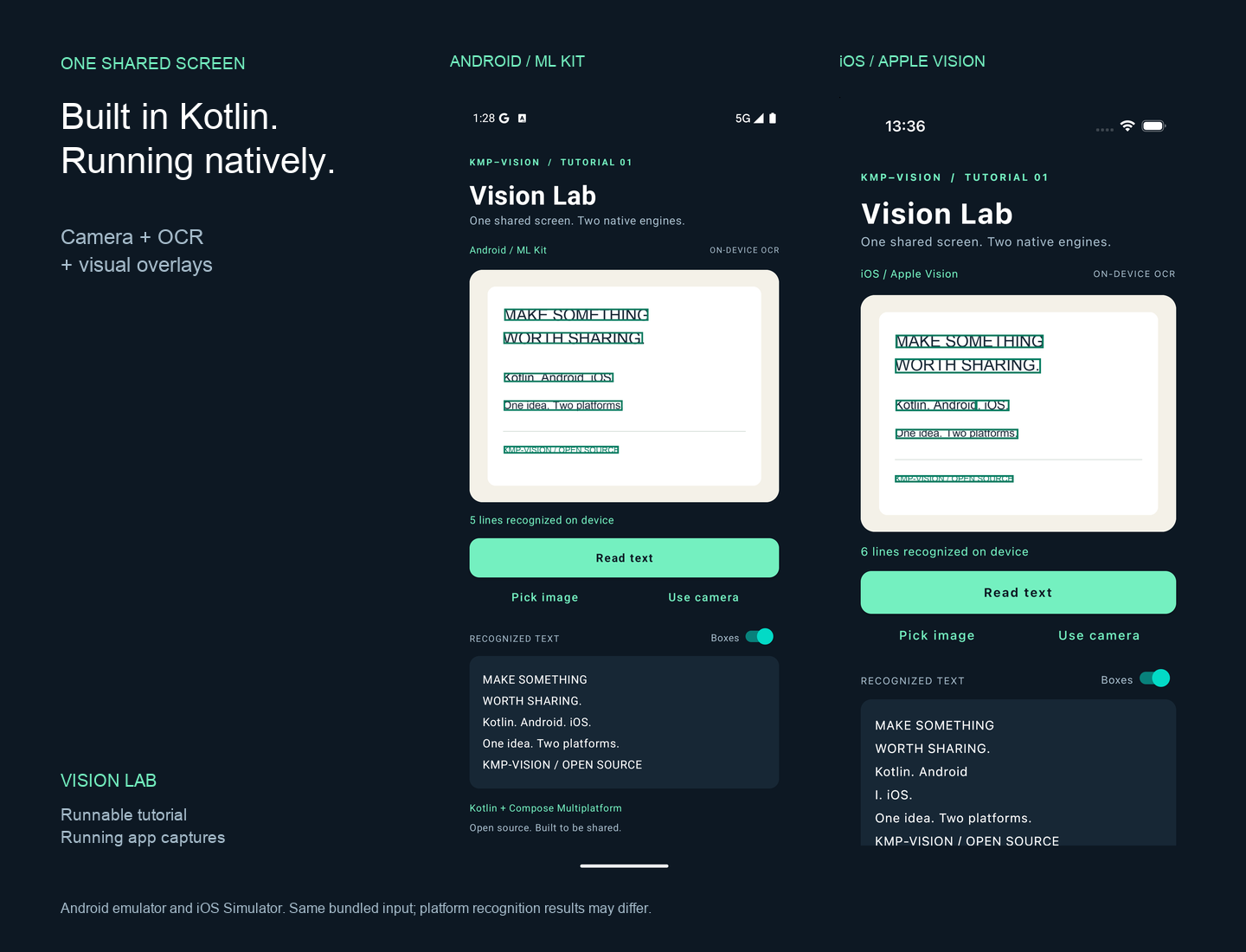
These are screenshots of the tutorial, not interface mockups. Both applications recognize the same bundled sample card. OCR output may differ between platforms.
1. Run the project
Clone the repository and open its root in Android Studio:
The tutorial uses the library modules in this checkout, so you do not need a published artifact to try it. Use JDK 17 or newer, the Android SDK required by the build, and Xcode on macOS for iOS. The Android tutorial compiles against API 37 and runs on API 24 or newer. The iOS tutorial targets iOS 15 or newer on Apple Silicon simulators and arm64 devices.
Android
Select tutorial.android in Android Studio, or build and install from the repository root:
./gradlew :tutorial:android:installDebug
adb shell am start -n io.github.lamplis.vision.tutorial/.MainActivity
iOS
Open tutorial/ios/VisionLab.xcodeproj in Xcode, select the VisionLab scheme and an iPhone simulator, then run. The build phase compiles the shared Kotlin framework. For a physical device, select your signing team in Xcode first.
Try the workflow
- Tap Read text to recognize the bundled card. This works without camera access or a recognition server.
- Compare the green boxes with the recognized text below the image.
- Toggle Boxes to inspect the original image.
- Tap Pick image to recognize your own image, or Use camera to capture a photo on a device with a camera.
The simulator-friendly bundled image keeps the tutorial reproducible. The camera route requires permission and camera hardware; iOS Simulator cannot demonstrate a physical camera feed.
2. Understand the project
tutorial/
├── common/    Shared Compose screen, OCR calls, overlays, bundled image
├── android/   Android application entry point and permissions
├── ios/       SwiftUI wrapper and Xcode project
└── README.md  Run and screenshot reproduction instructions
The main implementation is VisionTutorial.kt. Android supplies Android / ML Kit as the platform label; iOS supplies iOS / Apple Vision. The screen and recognition workflow are shared.
3. Recognize an image
The OCR API accepts encoded image bytes, such as a PNG or JPEG, and returns a list of OcrLine values:
val recognizer = createOcr()
try {
    val lines = recognizer.recognize(encodedImage)
    // Update your UI with each line's text and boundingBox.
} finally {
    recognizer.close()
}
Call the suspending operation from a coroutine. The tutorial uses LaunchedEffect, displays loading and error states, and closes the recognizer in finally. For a repeated frame-analysis workflow, create one recognizer for the session and reuse it.
4. Draw recognition results
Convert the OCR coordinates to the overlay module's rectangle type:
val shapes = lines.map { line ->
    val box = line.boundingBox
    OverlayShape.Rect(
        NormalizedRect(box.left, box.top, box.right, box.bottom)
    )
}
Place the image and VisionOverlay inside the same Box, with the same dimensions. The tutorial sizes that container to the image's aspect ratio, so the normalized coordinates line up with the displayed image.
Box(Modifier.fillMaxWidth().aspectRatio(imageAspectRatio)) {
    Image(bitmap, contentDescription = "Input image", modifier = Modifier.fillMaxSize())
    VisionOverlay(
        shapes = shapes,
        modifier = Modifier.fillMaxSize(),
        strokeColor = Color(0xFF087D62),
        strokeWidth = 2.dp,
    )
}
The snippets explain the steps; the linked tutorial source includes the imports, state, image decoding, error handling, and platform entry points.
5. Bring it into your app
Follow installation to add the modules you need. Use OCR for image recognition, overlays for rendering, and camera for frame analysis. Keep image cropping, rotation, and overlay coordinates consistent when adapting this example to a live camera preview.
Reproduce the documentation previews
The screenshots are captured from the running tutorial. An optional capture mode triggers the same native recognition operation after a short delay; it does not inject results.
See the capture instructions and asset provenance for the devices and processing used. The animated walkthrough is assembled from captured states and is not a performance benchmark.